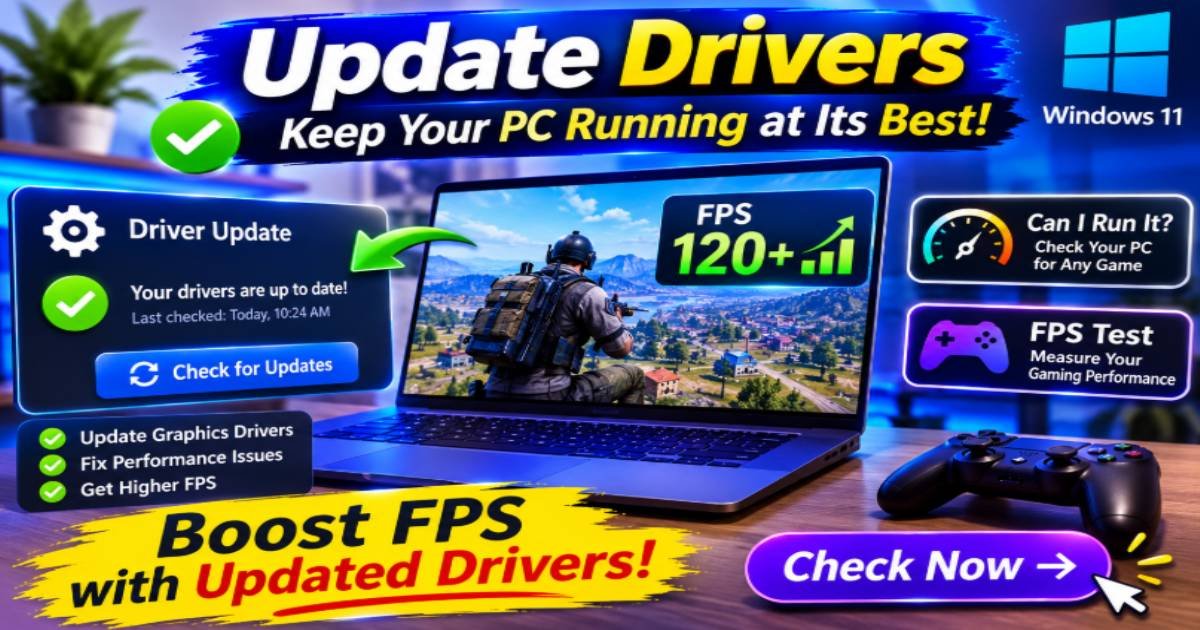

Installing a new PC game is exciting, but discovering that it runs poorly can quickly ruin the experience. Sometimes the problem comes from outdated graphics software, while in other cases the computer simply lacks the hardware needed for demanding gameplay. Before spending money on upgrades or downloading optimization applications, it helps to understand what your computer can handle. Checking drivers, reviewing game requirements, and measuring actual frame rates are three useful ways to investigate gaming performance.
Keep Your Hardware Ready With Updated Drivers
Your graphics card, processor-related components, sound hardware, and network devices depend on software drivers to communicate properly with Windows. When these drivers become outdated or develop compatibility issues, certain applications and games may not work as expected.
To update drivers, Windows users can check Windows Update or open Device Manager and examine the available hardware categories. Graphics card owners can also visit the official NVIDIA, AMD, or Intel websites to find compatible driver releases.
Keeping drivers current can offer several advantages:
- Better game compatibility: New driver releases may include support for recently released games and technologies.
- Improved stability: Certain updates address problems that cause crashes, display errors, or unexpected behaviour.
- Hardware support: Updated software can improve compatibility between Windows and connected devices.
- Access to new features: Graphics manufacturers sometimes introduce additional capabilities through driver releases.
- Bug corrections: Manufacturers may fix issues reported by users in previous versions.
However, installing every available update does not automatically increase FPS. Choose drivers that match your hardware and operating system, and avoid downloading installation files from unfamiliar websites. Microsoft recommends Windows Update and official hardware manufacturers as reliable sources for driver updates.
Find Out Whether a New Game Matches Your PC
Buying a game before checking its system requirements can lead to unnecessary disappointment. Some titles require powerful graphics cards, larger amounts of memory, and newer processors to deliver a satisfactory experience.
A Can I run it check helps users compare computer specifications with the published requirements of a particular game.
The well-known Can You RUN It service from System Requirements Lab can detect hardware information such as the processor, graphics card, RAM, operating system, and DirectX version. It then compares the detected specifications with the requirements of the selected game. <Cite refs={[“turn243783search7″,”turn243783search1”]}/>
This process is useful because it helps identify potential limitations before downloading or purchasing a demanding title.
Why checking compatibility matters
Avoid unsuitable purchases: Reviewing requirements beforehand can help prevent spending money on games your computer cannot handle properly.
Understand hardware limitations: A compatibility report can highlight whether the processor, graphics card, or available memory falls below the game’s requirements.
Plan future upgrades: Users can identify which components may need attention before investing in new hardware.
Choose appropriate games: Comparing requirements makes it easier to find games suited to an existing computer.
Remember that meeting minimum requirements does not guarantee high graphics settings or perfectly smooth gameplay. Recommended specifications generally provide a more useful target for players seeking a better experience.
Measure Real Gaming Performance With an FPS test
Passing a compatibility check is only one part of the process. A computer might meet a game’s published requirements and still experience noticeable slowdowns during demanding scenes.
An FPS test helps players observe how smoothly a game renders images during gameplay. FPS means Frames Per Second, representing the number of frames displayed or rendered each second.
A higher frame rate can make movement appear smoother, but consistency also matters. For example, gameplay averaging 60 FPS with frequent sudden drops may feel less comfortable than a session maintaining a steadier frame rate.
There are several ways to perform an FPS test:
- Use the frame-rate counter available in supported gaming platforms or graphics software.
- Run a game’s built-in benchmark when one is available.
- Monitor FPS while playing a repeatable section of gameplay.
- Compare results before and after changing graphics settings.
For meaningful comparisons, keep the resolution, graphics preset, and testing environment consistent.
What Can You Learn From Your FPS Results?
Frame-rate measurements can provide useful clues about the performance of your computer.
If FPS decreases significantly when visual effects become more demanding, the graphics card may be reaching its processing limits. Performance problems occurring during complex game calculations may point toward processor limitations.
Sudden drops can also be associated with overheating, background applications, insufficient memory, or software-related problems.
Testing different settings individually helps narrow down the cause. Lowering shadows, reducing demanding visual effects, or closing unnecessary applications may improve the results, depending on the underlying limitation.
Build a Simple Routine Before Playing
A few checks can help prevent avoidable gaming problems.
Start by confirming that your graphics drivers are compatible with your current system. Next, use Can I run it to compare your hardware against the requirements of a game you are planning to play. Finally, perform an FPS test to understand how the game behaves under your chosen settings.
These steps provide different kinds of information, so using them together gives a more complete picture of your computer’s gaming capabilities.
Final Thoughts
Better gaming performance starts with understanding the computer rather than immediately installing optimization software. The ability to update drivers helps maintain hardware compatibility, Can I run it provides an indication of whether a game matches your system requirements, and an FPS test measures how the game actually performs.
By combining these checks and making adjustments based on real results, PC gamers can make more informed decisions, avoid unnecessary upgrades, and get better use out of their existing hardware.
Read more articles from TechTrendery